

Here is a complete list of the tasks and timeline for the treasurer of 1st Kirton Scout Group. The job is now entirely online, and there is no physical paper handling, except for the very occasional cheque, which the NatWest app will deposit on your phone.
I have operated the account entirely through the bank account. I keep no cash at home, but always deposit it with the relevant reference, so that the automatic system will classify it correctly. If you decide to operate both bank and cash accounting, you can do it with the existing spreadsheet, but you will far more than double the amount of work you need to do. There are “Cash” columns in the spreadsheet (see below) which I have always been able to leave blank.
Everything that you need is on this page, except for the passwords, which I will send separately via secure channel (e.g. WhatsApp).
I use [email protected] everywhere as my login id, and for all parent communications. I can set this up to forward to your email address, if you like, or you can update all of the accounts directly.
Bank
- Account type: Business Current Account
- Account Name: 1st Kirton Scouts
- Account number: 7226 5272
- Sort code: 53-61-24 536124
- NatWest Ipswich, 2 Tavern St, Ipswich IP1 3BD open M,T,T,F 09:30-16:30 Wed 10:00-16:30
- We currently qualify for Community Free Banking
- You will need to transfer money to:
- 1st Kirton Scout Troop 40-25-31 9170 9275
- 1st Kirton Cub Pack 09-01-55 2164 2604
- 1st Kirton Beavers 53-61-24 7194 3897
- Osprey Explorers 53-61-24 7193 8419
- Orwell District Scouts 40-43-37 3154 6813 Ref: 1stKirton
- Unity Insurance 20-06-05 4350 2058 Ref: 69581867
- Kirton Parochial Church Council 09-01-51 6016 8309 Ref: SCOUTSCHURCHHALL
- Kirton & Falkenham Recreation Ground 09-01-51 4926 8300 SCOUTSCARBOOT
Ordering a Float
Ordering a float for an event: https://www.natwest.com/business/ways-to-bank/cash-coin-order-form.html You will need to fill in this form one week in advance of when you want to pick up the float. When you enter the bank, you need to withdraw the money from the ATM (hence the multiple of £20). Here are the coins and notes we usually order:
- Jumble (£220)
- £5 105 (£5×21)
- £1 80 (£20×4)
- £0.50 20 (£10×2)
- £0.20 10 (£10×1)
- £0.10 5 (£5×1)
- Car Boot (£220)
- £5 110 (£5×22)
- £1 80 (£20×4)
- £0.50 30 (£10×3)
Coin Weights
If you have to count a load of coins, and you have access to kitchen scales, it can be quicker to weigh each denomination and divide by coin weight.
- 1p 3.56g
- 2p 7.12g
- 5p 3.25g
- 10p 6.5g == (x50) 325g bag
- 20p 5g == (x50) 250g bag
- 50p 8g == (x20) 160g bag
- £1 8.75g == (x20) 175g bag
- £2 12g == (x10) 120g bag
Subs
We now use Online Scout Manager (OSM) to organise subs. This is a new system from April 1 2026 and it means that OSM is now doing automatically many of the tasks that the Treasurer was doing manually, such as sending out subs emails, overdue messages, etc. All of the details are explained in the online letter which is linked into every email sent to parents Capitation Fees & Subs If you change any details, just edit that page and all subs emails will link to your latest information.
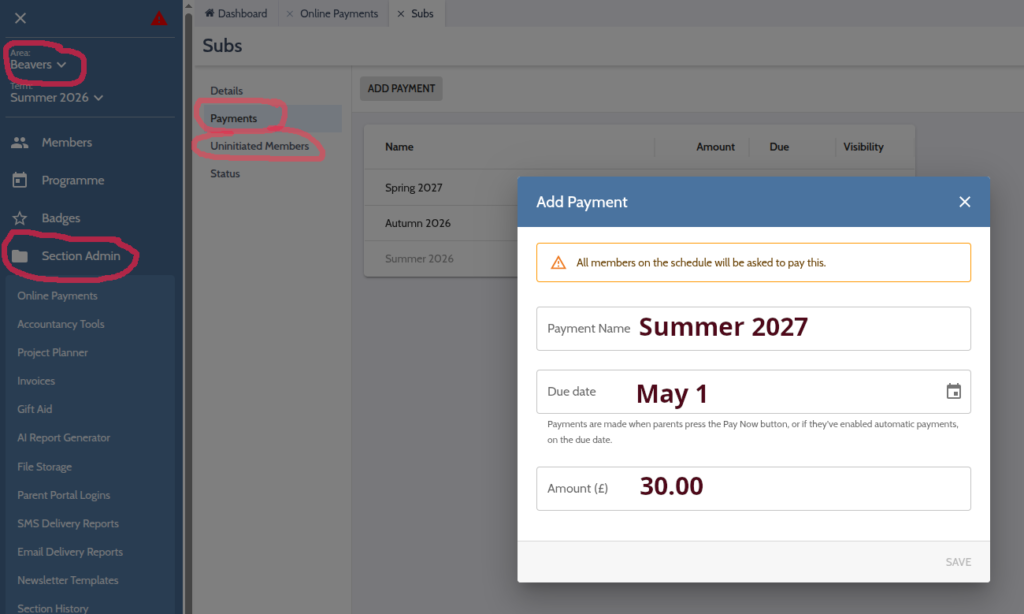
- April 1 start of the Scouts financial year you need to create three new payments in each of Beavers, Cubs, Scouts. Just copy the ones there, adding a year. In the picture below you can see them for 2026/27 – they are “Summer 2026” (due May 1), “Autumn 2026” (due Oct 1), “Spring 2027” (due Feb 1). In OSM you need to visit each of the three Areas “Beavers”, “Cubs.”, “Scouts.” and then select “Section Admin” -> “Online Payments” -> “Subs”. In “Payments” add the three new payments. Then in “Uninitiated Members” add all the members of the section who are not (young) leaders. Everything else is automatic 🙂
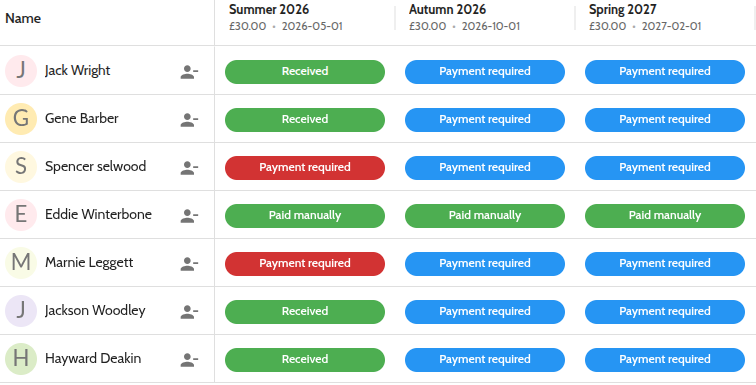
- If someone pays manually by BACS/cash/cheque/Paypal they will tell you. You should verify that they paid, and then switch their status to “Paid manually” (see example below).
- OSM has very good online help documentation and examples.
GoCardless Account
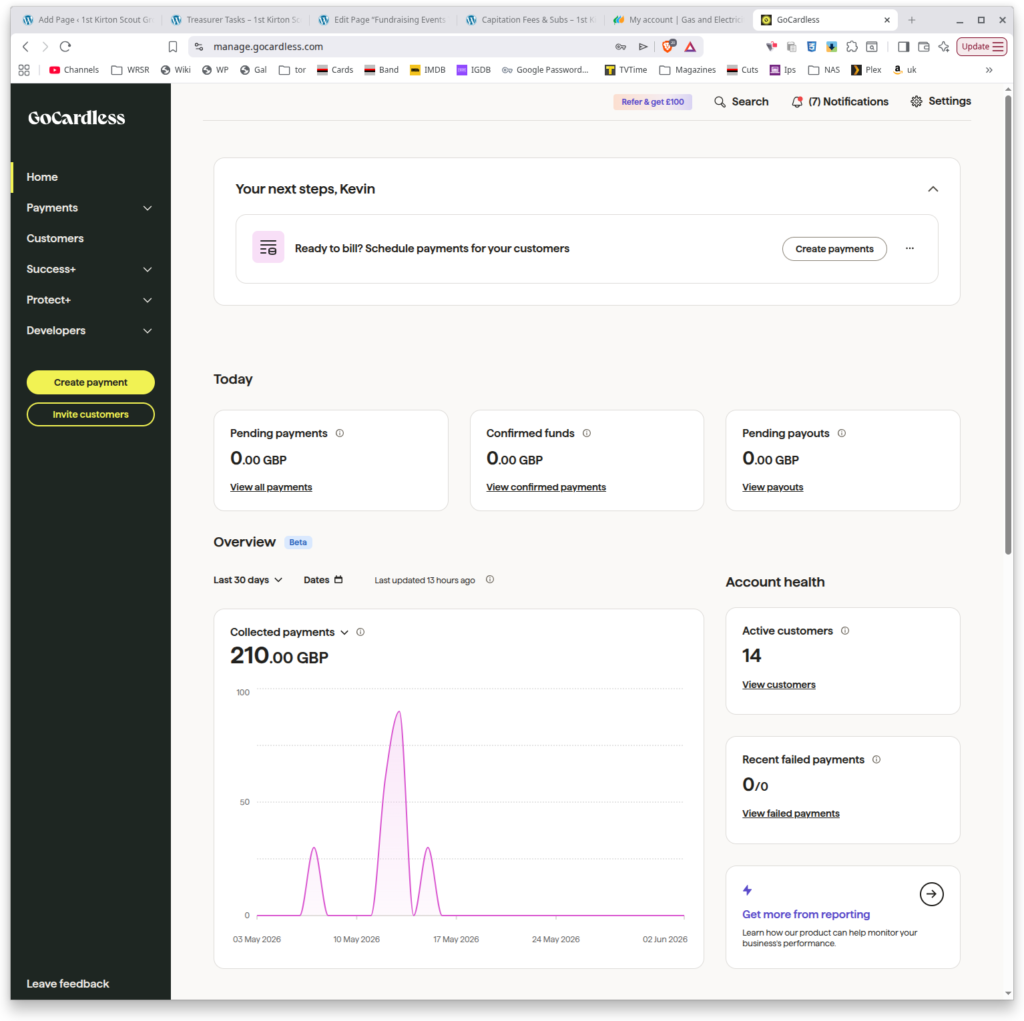
Most parents now pay subs through Go Cardless, set up within OSM for us. Online access https://manage.gocardless.com/ username [email protected]
It is automatic – linked straight into the bank account – and does not need any maintenance.
Section Subs Payments
At the end of each term, ask the leaders for an average attendance(M), and number of weeks(W). Alternatively you can also look these up from OSM. Transfer M x W x 50p to their section account. Use the BACS Reference: SubsToMMMYYYY e.g. SubsToDec2027 . Count school term weeks for Beavers and Cubs, and calendar weeks for Scouts.
- On January 1 count the previous September – December inclusive. Usually 14 school term weeks, 17 calendar weeks. So for an attendance of 8 per section this would be 14x8x.50=£56 for Beavers/Cubs and 17x8x.50=£68 for Scouts.
- On April 1 count the previous January – March inclusive. Usually 11 school term weeks, 13 calendar weeks. So for an attendance of 8 per section this would be 11x8x.50=£44 for Beavers/Cubs and 13x8x.50=£52 for Scouts.
- On September 1 count the previous April – August inclusive. Usually 12 school term weeks, 18 calendar weeks. So for an attendance of 8 per section this would be 12x8x.50=£48 for Beavers/Cubs and 18x8x.50=£72 for Scouts.
Gift Aid
We usually only claim gift aid every five years or so, because it is a laborious pile of government paperwork. OSM is supposed to help with that, but as we have only just switched to using OSM for subs, I do not know the new process.
- All of the files used to claim past gift aid are in the google drive “GiftAid” folder.
- Charity name:1ST KIRTON SCOUT GROUP, KIRTON, IPSWICH, IP10 0PU
- HMRC Charities Reference:XR51484
- Online account: https://www.tax.service.gov.uk/business-account username: 161469455951
Insurance
We are insured with Unity Insurance – who handle all Scout Groups in the UK
- We are insured with Unity Insurance – who handle all Scout Groups in the UK
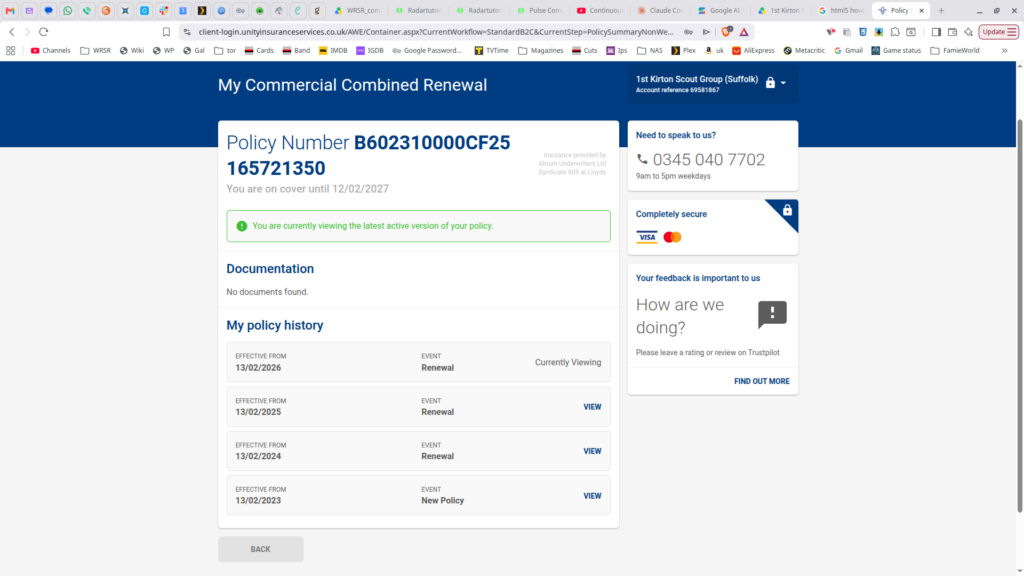
- Policy Number: B602310000CF25 165721350
- Renewed annually on February 13. They contact us by email a few weeks before.
- Our contact is: Chelsea Allgeier [email protected] 0345 040 7707 unityinsuranceservices.co.uk
- Unity Insurance are in the BACS payee list above, and on the online account.
- https://www.unityinsuranceservices.co.uk/scout-insurance username: [email protected]
- Latest policy files are in the google drive “Insurance” folder.
Electricity
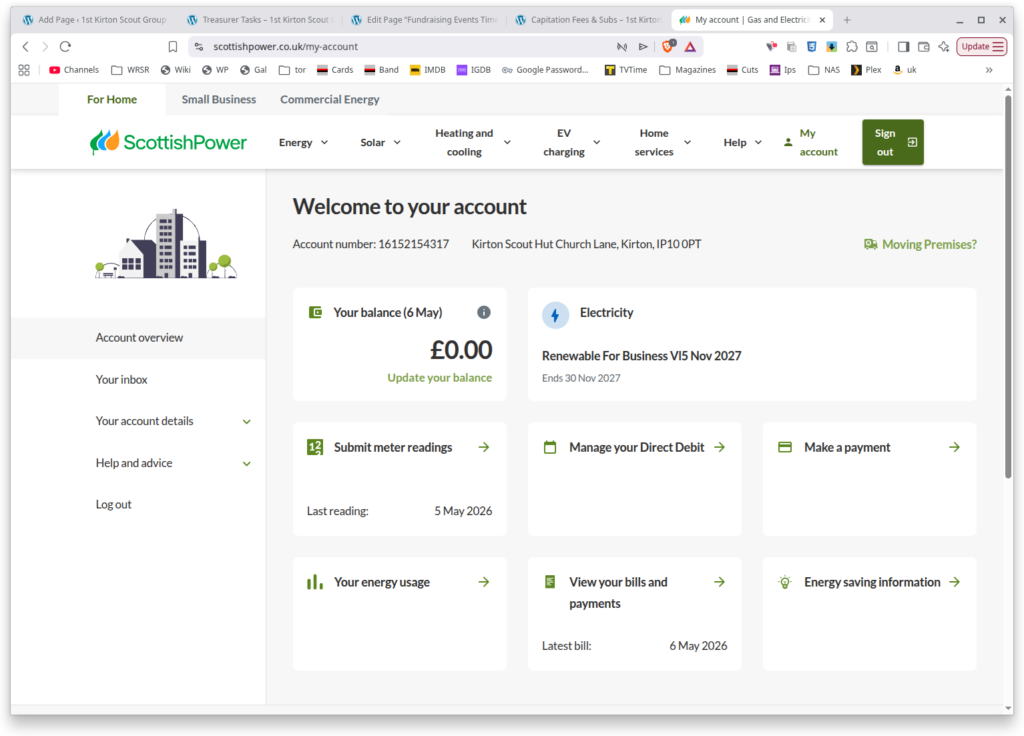
This is paid automatically. Currently we are with Scottish Power. Account number: 16152154317 https://www.scottishpower.co.uk/login username: [email protected]
Council Tax
We are a charity, and the council are not supposed to charge us tax. But what they do is to charge us, and make us claim it back. They also pretend never to have heard of the Scout Association, and make us prove that it is a charity.
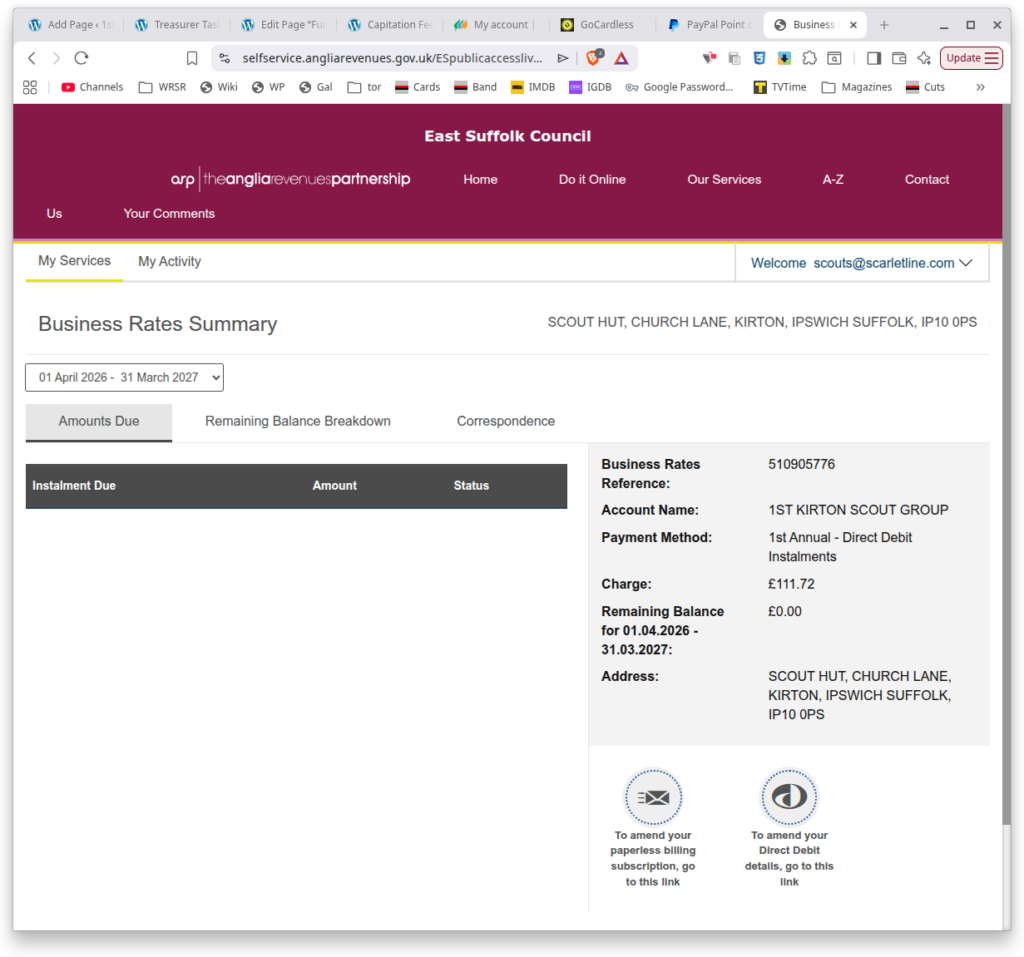
The online account is called “Anglia Revenues” https://selfservice.angliarevenues.gov.uk/ESpublicaccesslive/selfservice/dashboard.htm username [email protected]
Your unique reference code ESC219019
Date: 01/06/1981
Account No: 510905776
Registered Charity Number: 306101
Direct Debit Instruction Confirmation for 510905776
Name of Account Holder: 1st Kirton Scouts
Spring Jumble Sale
In the week before the jumble sale, you will need to order, and pick up, the float (see section above). Bring the float on the Saturday morning to the Church Hall. After the jumble sale you will need to count the cash taken. We do not need to separate it because the NatWest Ipswich bank uses automatic counting machines. Deposit the money in the next week, and make sure that the teller records the reference as “Jumble” because this will automate your paperwork later 🙂
Village Yard Sale
In the two months prior to the sale, you will need to regularly monitor the account, and inform Emma of any new transfers, and their reference address or name.
Car Boot Sale
In the week before the car boot sale, you will need to order, and pick up, the float (see section above). Give the float to Martyn on the Friday afternoon before the sale. After the car boot sale you will need to count the cash taken. We do not need to separate it because the NatWest Ipswich bank uses automatic counting machines. Deposit the money in the next week, and make sure that the teller records the reference as “CarBoot” because this will automate your paperwork later 🙂
On the Friday midnight before the Car Boot sale you need to compile the final list of Surname/Registration plates pre-booked – from the bank online transactions list, and share them on the WhatsApp group.
Autumn Jumble Sale
In the week before the jumble sale, you will need to order, and pick up, the float (see section above). Bring the float on the Saturday morning to the Church Hall. After the jumble sale you will need to count the cash taken. We do not need to separate it because the NatWest Ipswich bank uses automatic counting machines. Deposit the money in the next week, and make sure that the teller records the reference as “Jumble” because this will automate your paperwork later 🙂
Card Reader
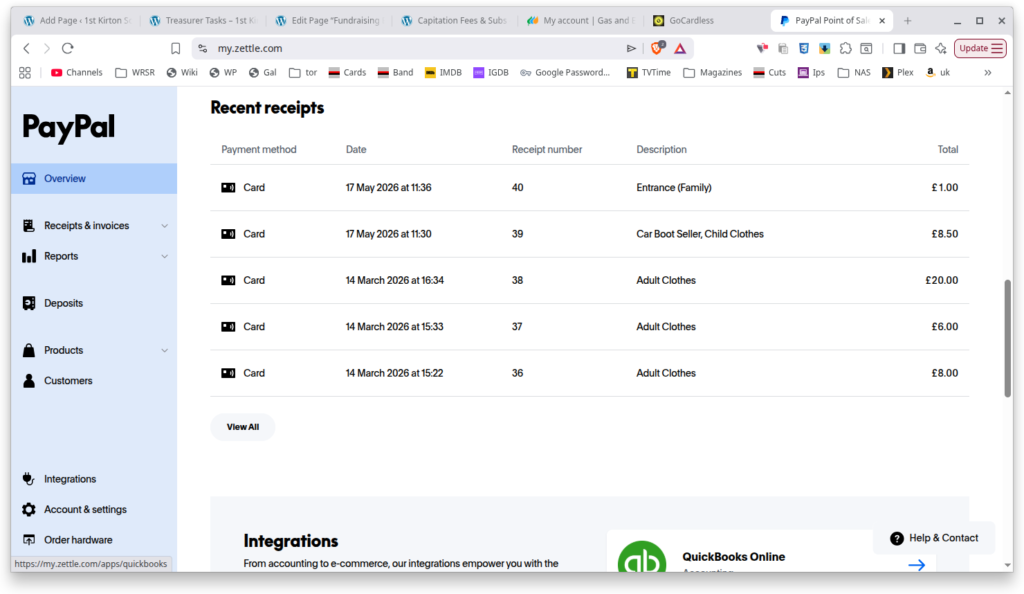
The Card Reader connects to any smartphone running the “PayPal POS (ex Zettle)” app [install for Android] [install for iPhone] through bluetooth. It already has buttons set up for “Jumble Adult Clothing”, “Car Boot Seller Car” etc. You need to login as [email protected] password will be provided to you on request. Emma has this already installed on her phone.
All card payments automatically get transferred into the bank account after a couple of days.
Annual Accounts
The accounts are all automated through a single annual spreadsheet. A new one is created by copying the previous year’s and blanking the old account list, each April 1. You can access them all here if you are logged in as someone with access: google drive 1st Kirton Scouts Accounts .
Adding Bank Data
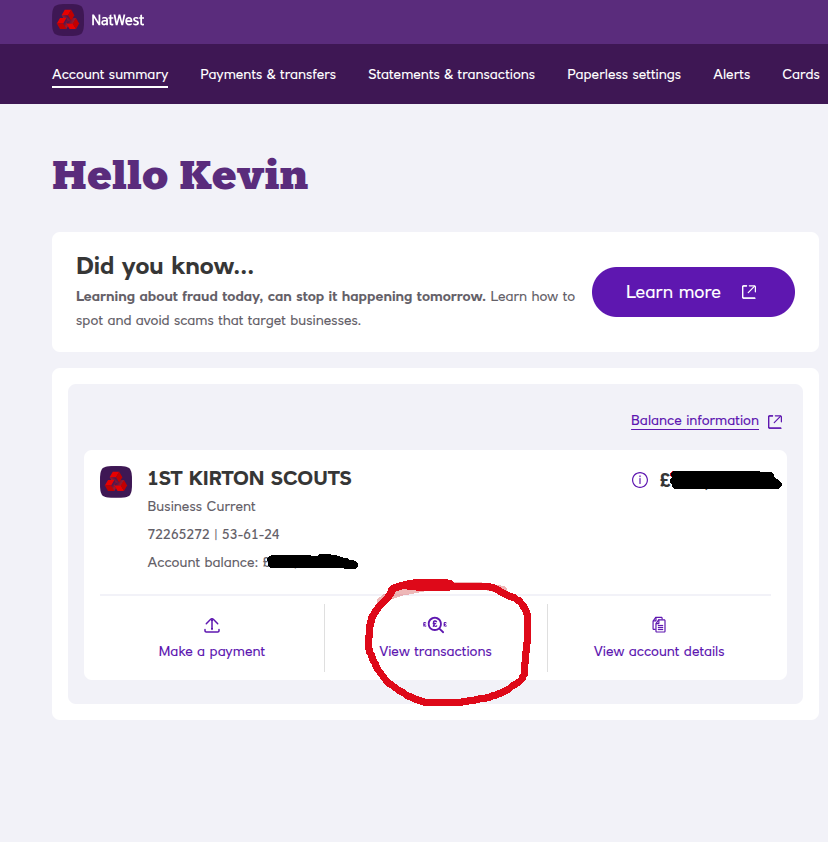
I have automated almost all of the paperwork. The main manual process is inputting the NatWest transactions file (.CSV format) every few months (or even just annually on 1 April (See “Creating a New Annual Spreadsheet” below). Here is how to download the transactions, for an example I am downloading the entire last financial year’s transactions. Log in to the NatWest banking site and click on “View transactions”.
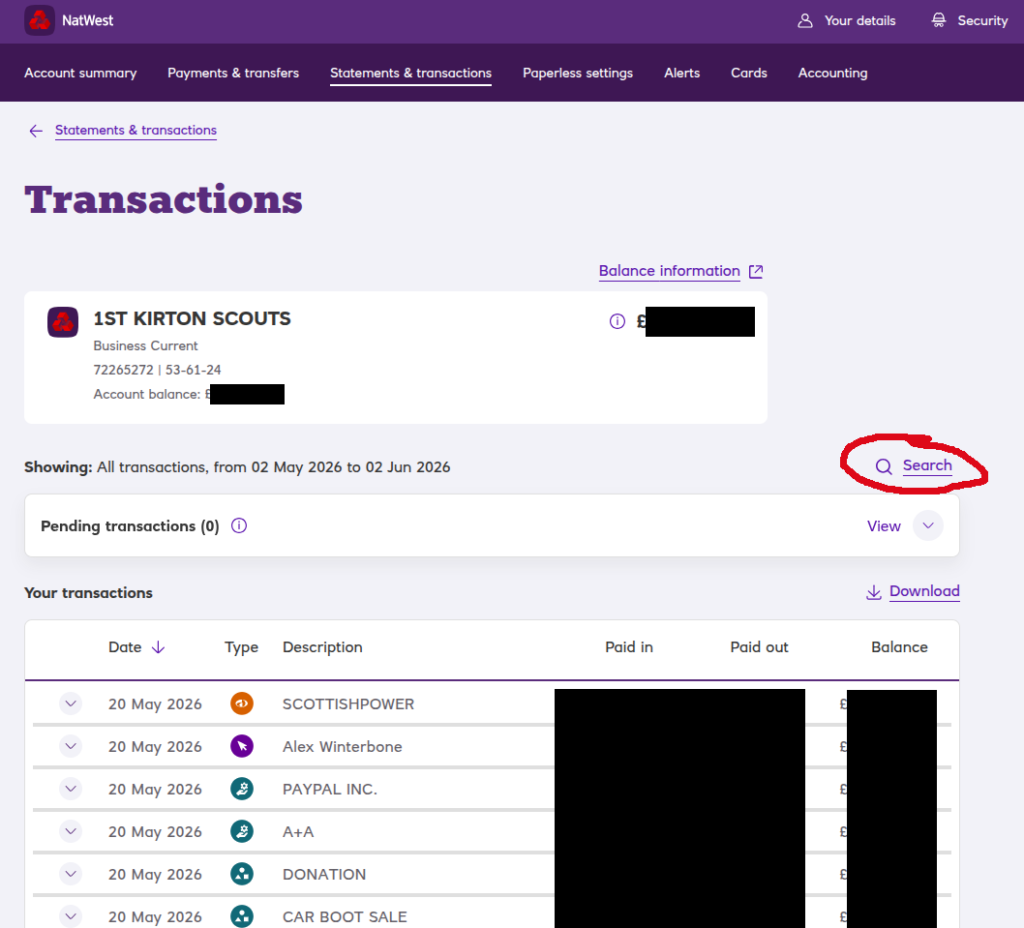
Now click on “Search”
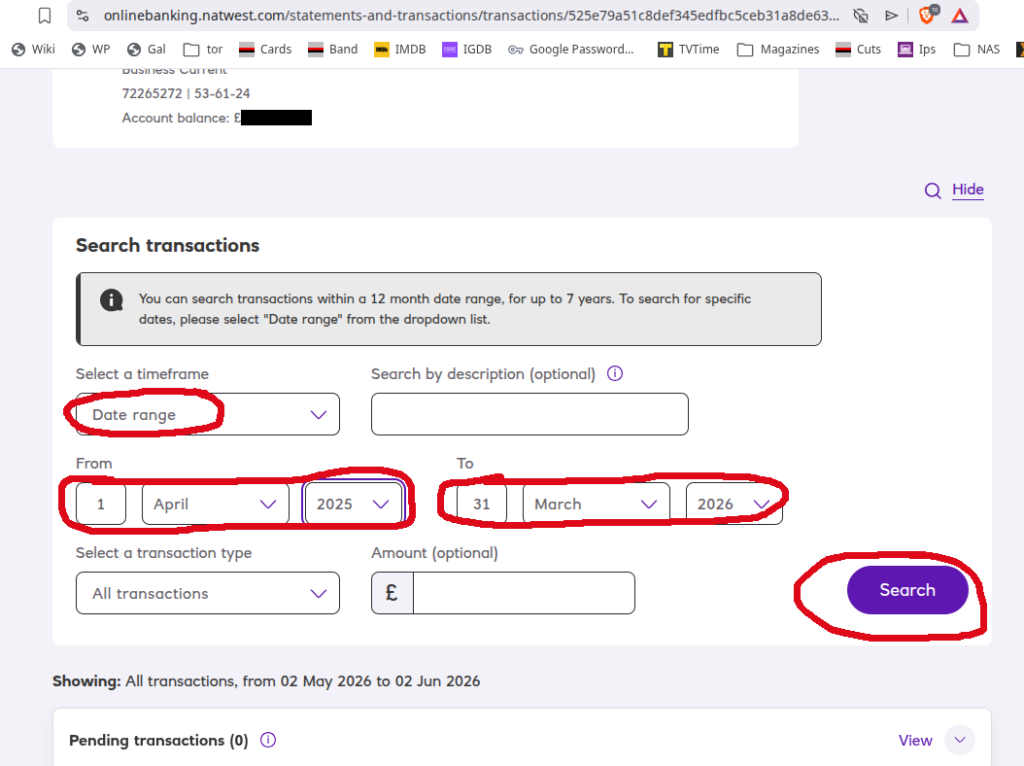
Select “Date Range” from the drop-down menu, and then fill in the from and to dates. For the entire 2025/6 financial year this is 1 April 2025 – 31 March 2026. Then click “Search”.
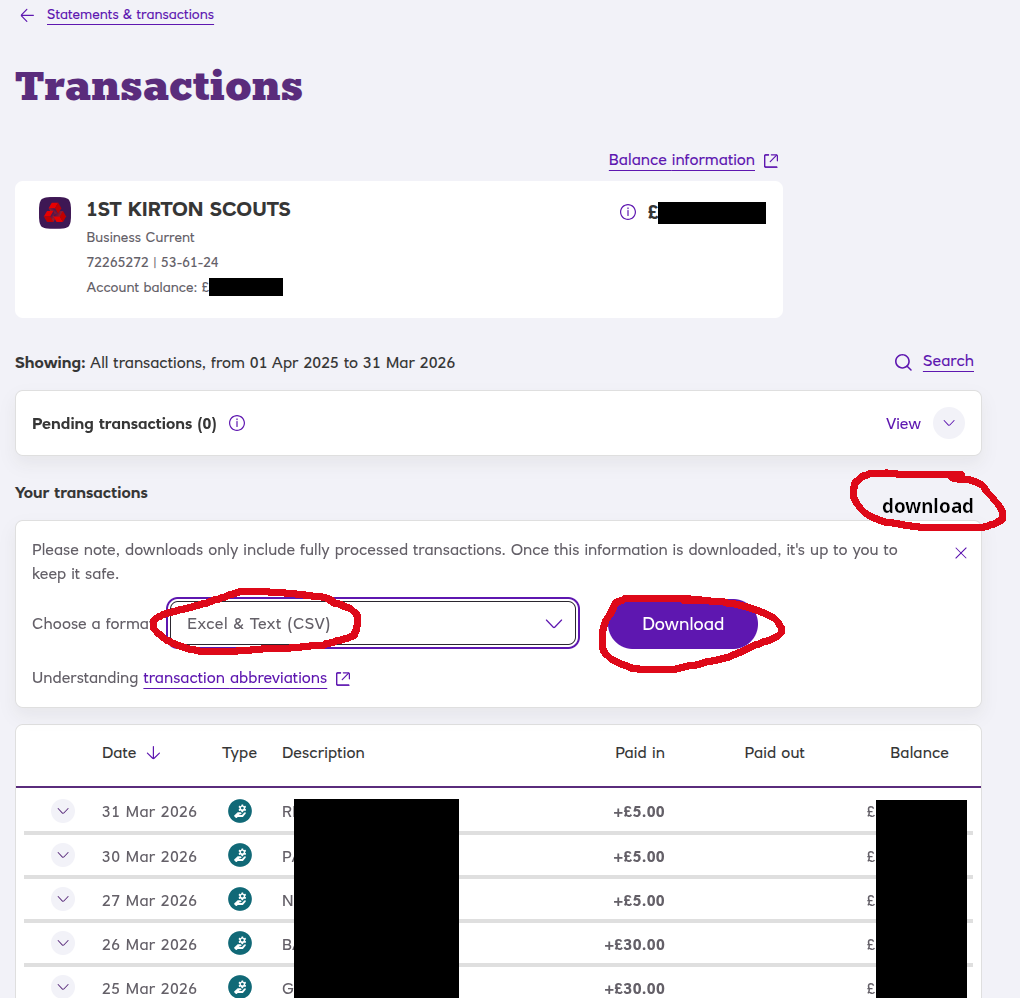
This gives you the entire list of transactions. Now download them by clicking “download” , then selecting “Excel & Text (CSV)” from the drop-down menu, and then click “download”.
Open the downloaded CSV file in your favourite spreadsheet application. Here is what the bank gave us:
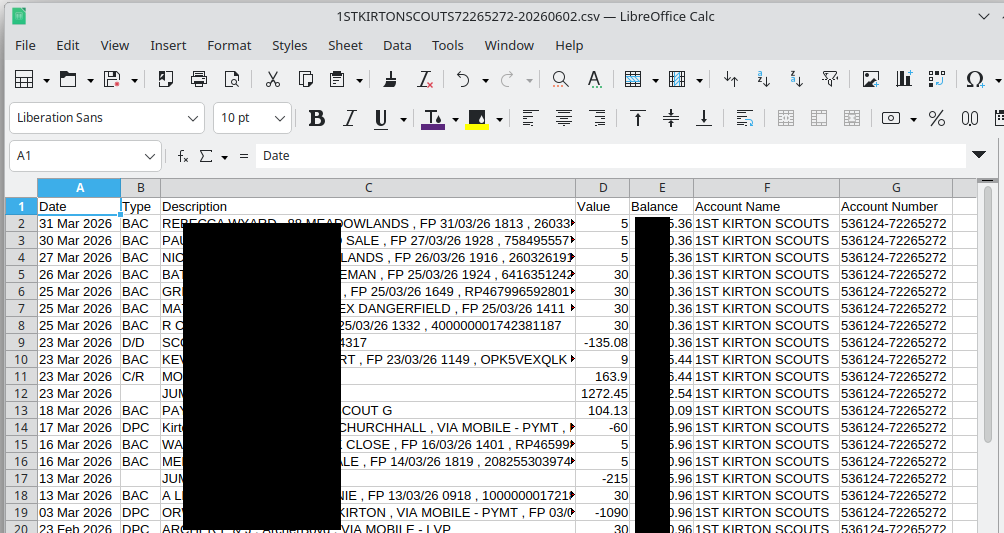
You will note that the transactions are ordered from most recent at the top and date descending. We need to reverse this so that the oldest transaction is at the top. Do it any way you like, but I have set up a tab on the accounts spreadsheet to do it for you if you prefer. Here is the annual accounts spreadsheet for 2025/6:
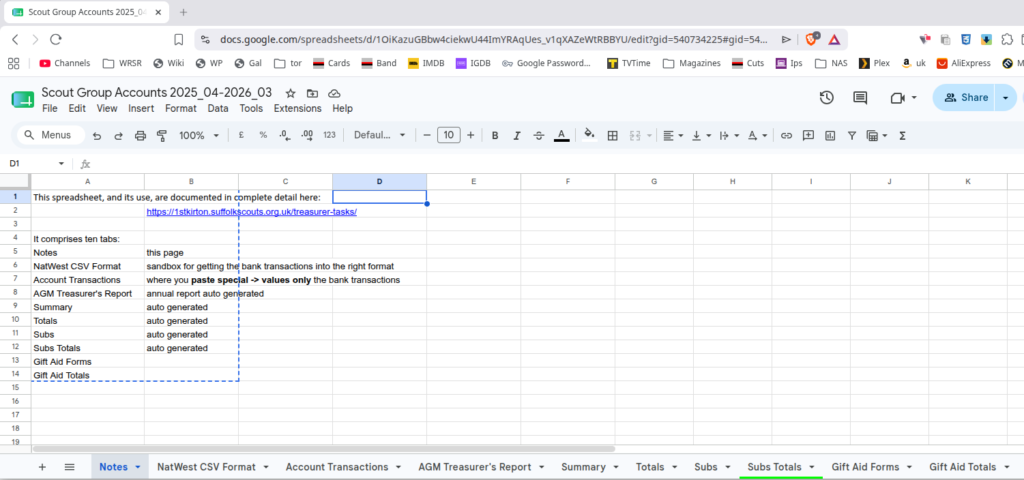
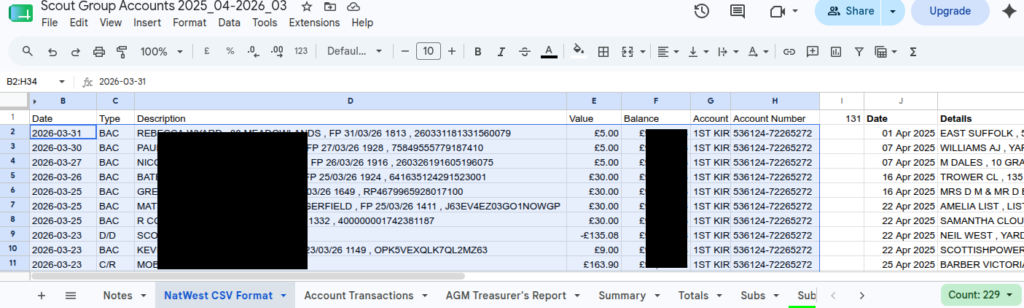
You will note that there are ten tabs. They are all automatically calculated, you just need to get the transactions into the “Account Transactions” tab. I will now get those bank transactions from the bank, downloaded above, into the spreadsheet. First go to the “NatWest CSV Format” tab and make sure that the data drop area B2..H301 is blank – if not, highlight it and click DEL. Now select and copy the entire data from the CSV file (not the headers) and then Paste Special -> Values Only into the “NatWest CSV Format” tab starting at cell B2. You can see the result below, and if you look to the right you will see that the data has been formatted ready for the “Account Transactions” tab, with the date order and columns corrected for our speadsheet.
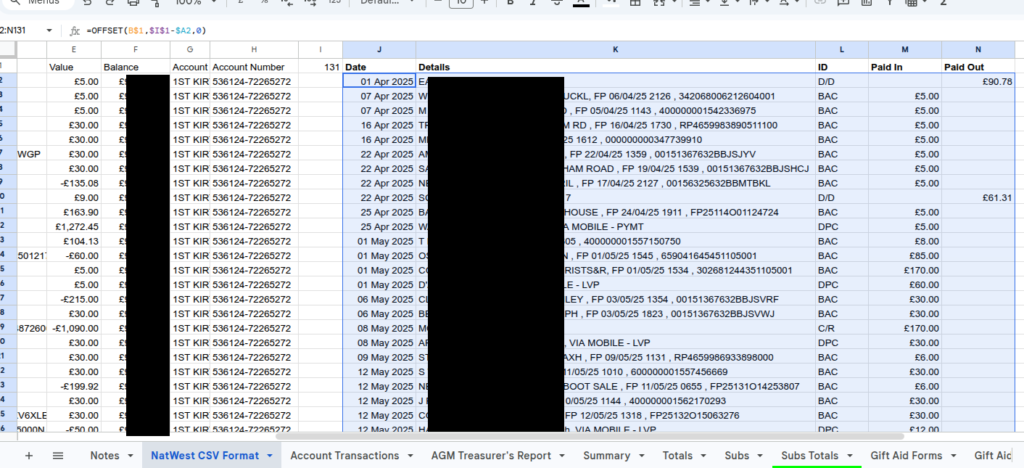
Now move to the right, to select the correctly formatted data from J2..N at the bottom of the valid data, and copy to clipboard.
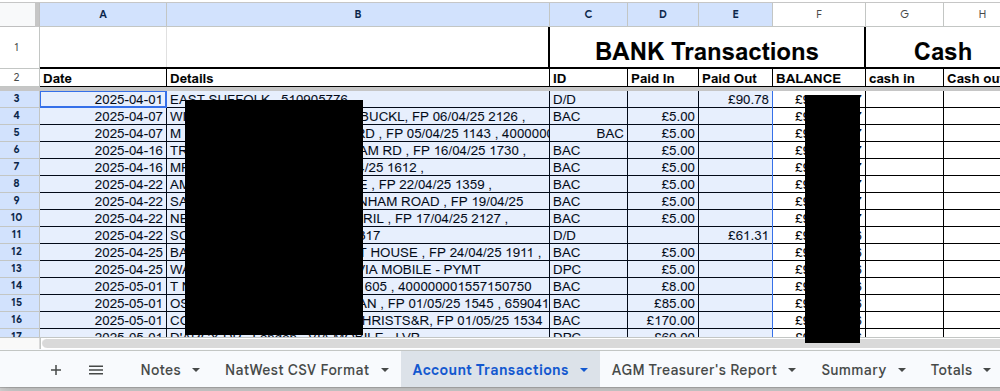
Switch to the “Account Transactions” tab and Paste Special -> Values Only into the appropriate place. You can see in this example that because we are using a whole year’s data, it is paste into A3. Do not forget to paste Values Only. The BALANCE column will automatically update, and you should check that this matches the bank data from the CSV file. Here is the “Account Transactions” tab with the data pasted:
Transaction Codes
Now if you look to the right on this sheet, you will see that a Code column has been automatically filled in with single upper-case letters.
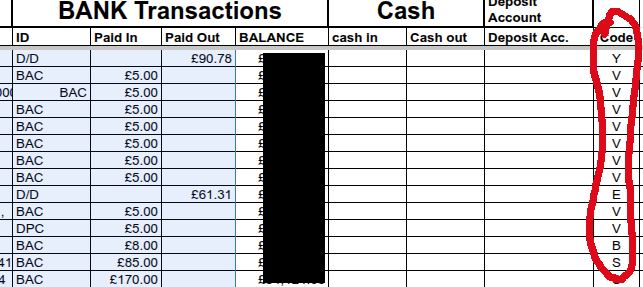
This is how the spreadsheet generates all your paperwork for you automatically. It has a table of rules, and if a rule matches it assigns one of the codes to the transaction. e.g. if the word “JUMBLE” appears in the Description, it assigns the letter J and if the value of exactly 5 pounds appears in the “Paid In” field, it assigns it a code of V (for village yard sale). Here are all the rules, codes, and their descriptions:
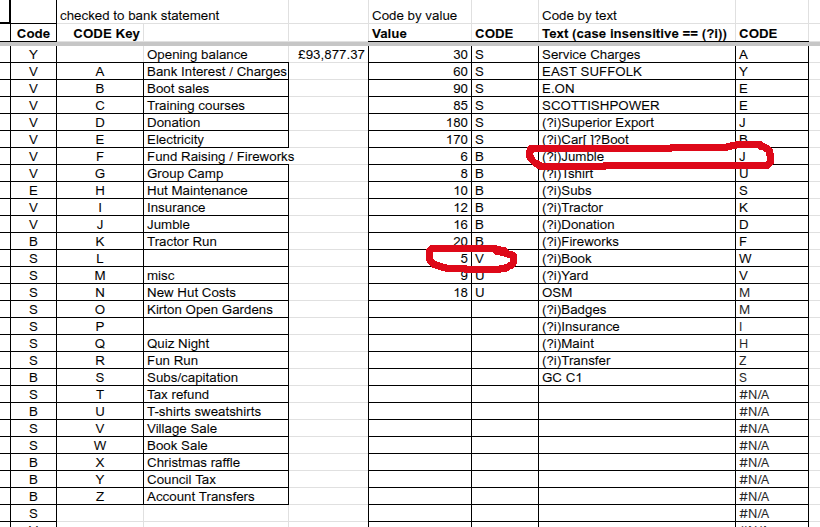
Once you have paste new account transactions into this sheet, look down the Code column for any transactions with a blank code. Fix them by entering a keyword into the Details column, at the end of the text already there. Never edit the Code column. So, for instance, if you deposited the cash from the Jumble sale in the bank, and forgot to tell them to put “Jumble” as the reference, you can do it now by appending the word “Jumble” to the end of the “Details” entry, and the code will be fixed.
Those codes drive everything else in the spreadsheet, most notably your end-of-year paperwork (on the “AGM Treasurer’s Report” tab). You can safely ignore the rest of the spreadsheet, it contains various summary reports, mostly used for the now outdated treasurer report, and the subs system before we switched to OSM.
Creating a New Annual Spreadsheet
- Copy the existing sheet to a new file, and name it with the following year e.g. copy Scout Group Accounts 2026_04-2027_03 -> Scout Group Accounts 2027_04-2028_03
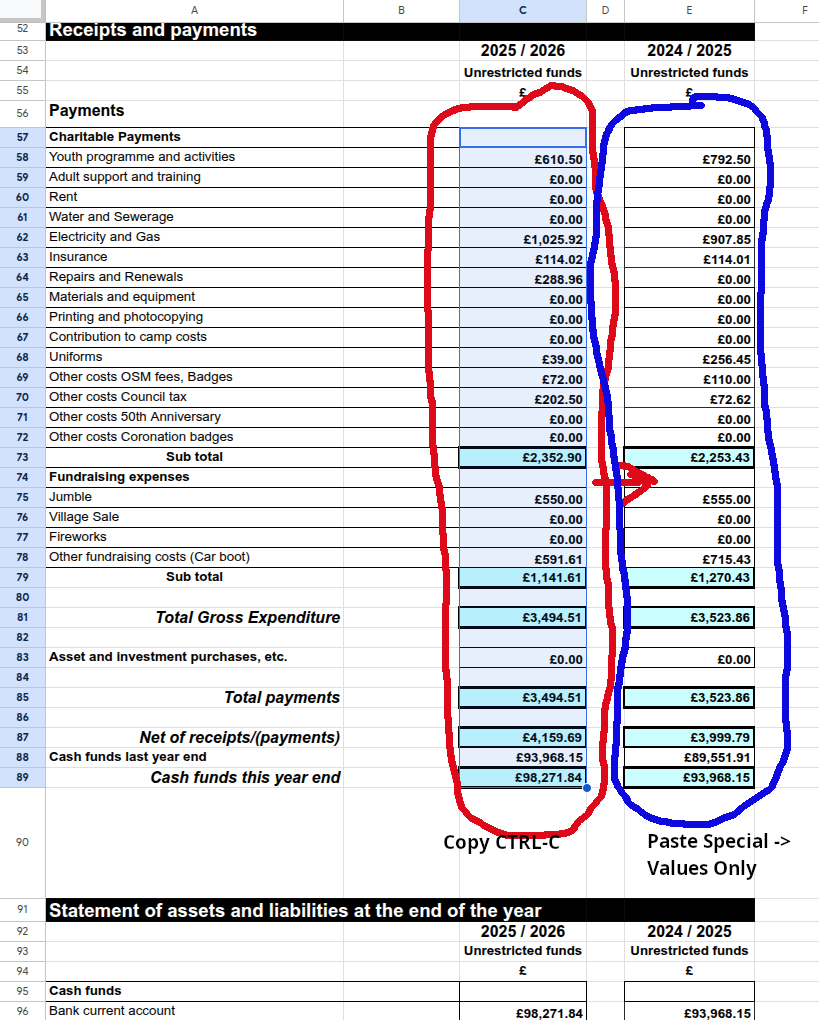
- Open the new spreadsheet, and copy the Values in blocks in the “AGM Treasurer’s Report” tab by selecting each of the three blocks in turn, copy to clipboard, Paste Special -> Values Only to the block on the right. The three blocks are C11..C45 -> E11..E45, C57..C89 -> E57..E89 and C95..C122 -> E95..E122 .
- Go to the “Account Transactions” tab and blank the transactions in A3…E202 by selecting this region, and hitting the DEL key.
- That’s it! Your new annual spreadsheet will work out it’s year from the bank transactions that you later paste into the “Account Transactions” tab when they appear – see above